
This article will explain how to install and how to log into GP
Install
Dynamics GP does not really get installed on your computer. It is installed on a server and you remote into that server and run GP. We do this to make sure it is always up to date and runs at the fastest possible speeds.
Attached to this document is the shortcut you need to put on your computer to launch the connection to GP. Just download this shortcut and put it on your desktop (or other location on your computer) and then double click it to launch the connection.
Log into GP
You will be required to log in twice to get into GP
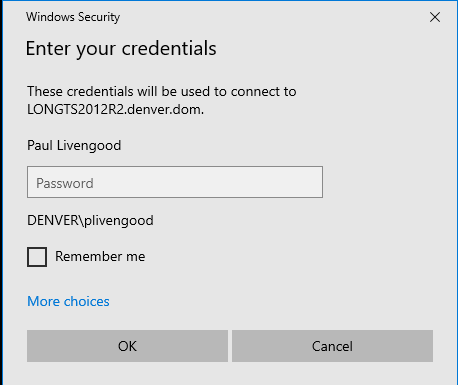
First login - This will pop up when you launch the shortcut to GP. This is actually logging you into the remote server. For this login you will use your Windows username (ex: DENVER\plivengood) and your network password. The login screen will look like the image below. It is not recommended to click "Remember Me" as this may cause other issues.
NOTE: If it does not automatically display your username then click "more choices" and you will be prompted to enter another username.
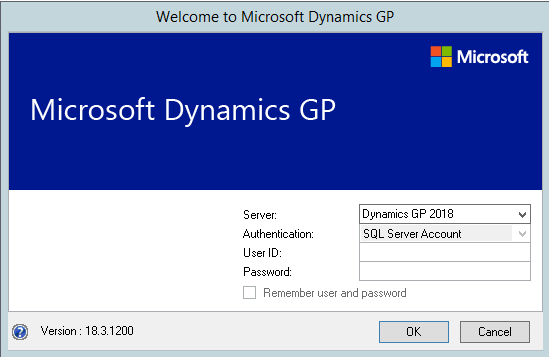
Second Login - This is the login to GP. Your username and password are supplied by Accounting. The login screen will look like the image below.
If you need help please contact Accounting or SupportTeam.