
BILL.com P-Card Program
Training & Reference Guide
LONG Building Technologies
June 2026
Table of Contents
1. Getting Started
2. Training Resources
3. What to Expect – P-Card Users
4. What to Expect – Approvers
5. Your Responsibilities – Required Fields
6. Receipts
7. P-Card Limit Increases
8. Virtual Cards
9. Frequently Asked Questions (FAQ
10. Support & Contacts
1. Getting Started
Account Activation
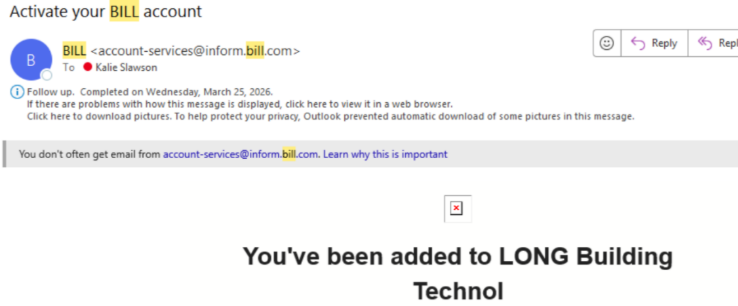
To get logged into the BILL.com platform, do not attempt to create your own account. You will receive an email with the subject "Activate your BILL account" from account-services@inform.bill.com.
THIS IS NOT SPAM. This is your activation email — please follow the link to set up your account.
⚠️ Do NOT attempt to create a BILL.com account on your own. You MUST start from this email.
Physical Cards
Physical P-Cards will be ordered by accounts payable and delivered directly to the local office. The typical shipping time is 1 to 2 weeks. Follow the card activation steps AFTER setting up your online account via the activation email above.
Note: Approvers will not receive a physical card.
Mobile App & Notifications
Download the BILL Spend & Expense mobile app (available in the company app store).
Turn on push notifications. This is one of the best features of the new platform. As soon as your card is swiped, you'll receive an instant notification allowing you to:
Take a photo and attach your receipt in real time
Code the transaction on the spot
This real-time workflow was one of the pilot group's favorite features — it eliminates the backlog of uncoded transactions and transaction submission almost instantaneous.
2. Training Resources
Below are step-by-step Scribe videos to help you get started:
How to code transactions:
How to review and approve transactions:
Mobile App Overview:
3. What to Expect – P-Card Users
Use the BILL.com card the same way you use your current UMB card. Please begin using your BILL.com card as your primary card immediately on June 1.
You'll use BILL.com (desktop) or the BILL Spend & Expense mobile app to:
Code transactions
Attach receipts
Submit transactions for approval
Once all required fields are completed, transactions automatically move to Pending Approval — there is no additional "submit" button.
4. What to Expect – Approvers
You can review and approve transactions from either BILL.com (desktop) or the BILL Spend & Expense mobile app.
5. Your Responsibilities – Required Fields
Please code transactions promptly and complete all required fields, including:
Field | Required? | Notes |
Budget | Yes (auto-defaults) | Should only have one option; corresponds to system & account configuration |
Worker | Yes (defaults to self) | Change only if assigning to another worker (e.g., splits), or if a company expense for a sales person (0000) |
Dimension | Yes (defaults to own dimension) | Select the appropriate dimension(s) (business unit) that the transaction relates to. |
Main Account | Yes | Select expense account |
Notes | Yes | Brief description of the expense |
Purchase Order | Optional | Complete if applicable — see training videos for detail |
Project/ Work Order | Optional | Complete if applicable — see training videos for detail |
Task | Optional – required for Projects | Complete if applicable — see training videos for detail |
6. Receipts
There are several ways to attach receipts in BILL.com:
Take a photo directly in the mobile app
Upload from your desktop
Email receipts to receipts@card.BILL.com — they will automatically attach to the matching transaction (matching improves over time)
Personal Email for Auto-Matching
You may add a personal email address to your profile to allow for matching of receipts from personal accounts used for work (e.g., Uber, Lyft):
Profile (upper right) → Options → Edit Account → Add Email
Missing Receipts
If a receipt is missing, use the Missing Receipt option within BILL.com. This logs the transaction with an explanation in place of the receipt.
7. P-Card Limit Increases
P-Card limit increases can now be requested directly within the BILL.com platform (desktop or app) — no more manual requests.
The approval process remains the same as today:
Your supervisor must send an approval email to AP/Andrea before any increase is processed
In BILL, navigate to: Budgets > Member Budget > Fund Request > fill in the amount & reason for the increase, then submit
8. Virtual Cards
You can add your BILL.com card to your phones wallet (Apple or Google) through the native wallet app. Follow the prompts to verify the account and add the card, for tap to pay.
9. Frequently Asked Questions (FAQ)
Q: I can't see all the accounts I need.
Email Kevin Brady or Andrea Shatto to have your account profile updated. We will adjust your account access promptly.
Q: What if I don't receive the activation email on June 1?
Check your spam/junk folder first. If you still don't see it, contact Kevin Brady or Andrea Shatto and we'll get it resent.
Q: Do I need to use the mobile app?
The mobile app is not required, but it is strongly recommended. The real-time push notifications and receipt capture make coding significantly faster and easier.
Q: Can I still use my UMB card after June 1?
Yes, your UMB card will remain active through July 31, 2026 to allow for any remaining or recurring charges to process. However, please begin using your BILL.com card as your primary card immediately. All UMB coding must be completed by August 31, 2026.
Q: What do I do if I lose a receipt?
Use the Missing Receipt option within BILL.com. This logs the transaction with an explanation in place of the receipt.
Q: How do I request a credit limit increase?
You can now view and request limit changes directly in the BILL.com platform (desktop or app). As with the current process, your supervisor must send an approval email to AP/Andrea before the increase is applied.
10. Support & Contacts
If you run into issues or have questions at any time, please reach out to:
Kevin Brady – kbrady@long.com
Andrea Shatto – ashatto@long.com
Kalie Slawson – kslawson@long.com
Or flag items during our weekly office hours.